


20 ans d’expérience dans la gestion et la diffusion de contenus numériques.
* Éditeur de plateformes digitales
* Agence web : accompagnement et réalisation de projets
Nous sommes
Société française, éditrice de logiciels et plateformes de services digitales pour la presse, le livre et l’éducation.
Nous recherchons un Commercial BtoB Média Presse Digitale, poste basé à Palaiseau (RER Massy) pour la commercialisation de nos services auprès des éditeurs de presse ou agrégateurs.
Le Job
- Commercialiser les offres digitales du Groupe (kiosque, gestion d’abonnement, site web, …)
- Prospecter et développer un portefeuille de clients, 25% de clients existants et 75% de prospection pure,
- Gérer l'intégralité du cycle de vente, en visio ou déplacement, avec démonstration de produits auprès d’interlocuteurs variés, par la fonction et le domaine.
- Porter les offres commerciales, assisté par les équipes projets et l’encadrement commercial.
Cette description prend en compte les principales responsabilités, elle n'est pas limitative.
Vous êtes
Au-delà de la formation, c'est avant tout votre personnalité, tempérament, dynamisme et savoir-être qui sont appréciés.
Vous avez au moins une première expérience en tant que Commercial BtoB.
Une sensibilité pour l'univers du digital est obligatoire.
Notre offre
Rémunération proposée: 25K bruts de fixe + 12K € de variable annuelle brut à 100% de l'objectif (variable déplafonné jusqu'à 200% de l'objectif).
Télétravail autorisé.
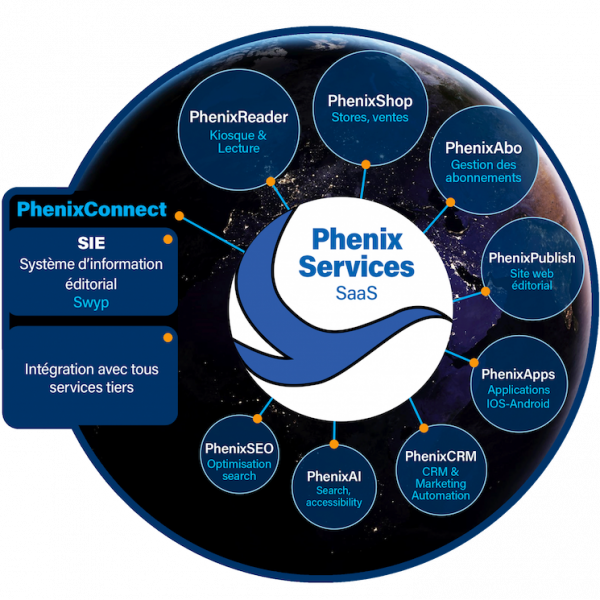
PhenixServices, le 1er portail de diffusion intégré pour la Presse
Immanens présente PhenixServices un outil de diffusion digital et web. Parce qu’aujourd’hui, la recherche d’efficacité exige une approche globale 360°, tous supports.
PhenixReader : Cette fonctionnalité offre des liseuses Web et des applications dédiées permettant aux utilisateurs de lire des pages et des articles numériques de manière fluide et conviviale.
PhenixSearch : Ce moteur de recherche avancé permet aux utilisateurs de rechercher efficacement des articles et des contenus PDF spécifiques au sein de la plateforme, facilitant ainsi l'accès à l'information recherchée.
PhenixApp : Avec cette application, les utilisateurs peuvent accéder à une liseuse intégrée et suivre un flux éditorial régulièrement mis à jour, offrant ainsi une expérience de lecture interactive et engageante.
PhenixShop : Cette fonctionnalité permet la création et la gestion d'une boutique en ligne, offrant aux utilisateurs la possibilité d'acheter des produits et des services proposés par Immanens et ses partenaires.
PhenixAbo : Avec PhenixAbo, les éditeurs peuvent gérer facilement les abonnements de leurs utilisateurs, que ce soit pour des publications au format papier ou numérique, offrant ainsi une solution complète de gestion des abonnements.
PhenixCRM : Cette fonctionnalité fournit un outil de gestion des relations clients complet, permettant aux éditeurs de communiquer efficacement avec leurs clients actuels et potentiels, et de suivre leurs interactions pour une meilleure compréhension des besoins et des préférences.
PhenixPublish : PhenixPublish offre la possibilité de créer et de gérer facilement le site Web de l'éditeur, tout en assurant la synchronisation des contenus avec un Système d'Information Éditoriale (SIE) comme SWYP, facilitant ainsi la publication et la mise à jour des contenus en ligne.
PhenixAI : En utilisant des modules d'intelligence artificielle, PhenixAI permet d'optimiser les recherches et d'améliorer l'accessibilité des contenus, en offrant des recommandations personnalisées et en facilitant la navigation pour les utilisateurs.
PhenixData : Cette fonctionnalité fournit des statistiques détaillées sur l'audience et la lecture des contenus, permettant aux éditeurs d'analyser les performances et d'adapter leur stratégie en fonction des données recueillies.
PhenixSEO : PhenixSEO automatise la génération de sitemap et optimise le référencement des archives, améliorant ainsi la visibilité et la pertinence des contenus pour les moteurs de recherche.
PhenixConnect : Cette fonctionnalité permet une intégration transparente avec les produits existants de l'éditeur, garantissant une compatibilité et une continuité optimales des opérations.
PhenixServices, des bénéfices incomparables
Regroupés au sein de PhenixServices ces briques servicielles, toutes optionnelles, permettent à l’Editeur de rassembler les composants essentiels de sa chaine de diffusion sur une plateforme technique unique.
Performance et cohérence de la solution métier
Valorisation des contenus avec de nouvelles méthodes
Partage des avancées d’une communauté d’utilisateurs
Limitation des coûts : du setup à l'exploitation
Éviter la dispersion et les difficultés d’intégration de technologies trop diverses
Maintenance facilitée
Phenix Connect
PhenixConnect, PhenixServices permet de s’interfacer avec les prestataires existants pour la meilleure flexibilité possible.
Grâce à son partenariat avec le Système d’Information Editorial SWYP, Immanens est en mesure de proposer une solution 360° de la production de contenu à la diffusion
Immanens, partenaire des éditeurs de contenu
Nos équipes sont en mesure de vous accompagner dans vos projets de transformation digitale, sur tout le cycle projet web & digital, du design à la mise en place et l’aide à l’exploitation. Au-delà de l’apport essentiel de nos plateformes de service digitales, nous intervenons en web copilot et développement applicatif. Nous nous adaptons à vos enjeux spécifiques dans le but de vous proposer les meilleures solutions technico-économiques à vos besoins.
Immanens en chiffres
Immanens est un industriel de la diffusion, un professionnel de la mise en valeur des contenus
Éditeurs
Publications en production
Numéros produits / an
Ans d'expérience
Collaborateurs
Nos valeurs :
"Rigueur, créativité, engagement"
- Philippe Belin
Contact
Partenariats et demandes générales
business@immanens.com
Adresse postale
7 rue de la croix Martre,
91120 Palaiseau
FRANCE